Hardware Wallets
Developer Hardware


 Get Started
 Tutorials
 Expert Reviews



Your Secure Hardware Wallet
Keystone 3 Pro Get Started
This page guides you through the initial setup of the Keystone hardware wallet, covering device initialization, wallet creation or import, secure password setup, and recovery phrase backup, helping you complete the process smoothly and keep your crypto assets protected with offline security from the start.
Keystone Essential & Pro Get StartedEnsuring Security Before You Explore
Preparation
Step-by-Step Setup Guide
A Must-Read Guide for Keystone Users
Ensuring Security Before You Explore
If you're new to hardware wallets and have been using software wallets, you might have heard about seed phrases and their importance.
Seed phrases give you control over your digital assets. With them, you can receive and send coins securely. However, it's crucial to be aware of certain important things to protect your assets.
Seed phrases give you control over your digital assets. With them, you can receive and send coins securely. However, it's crucial to be aware of certain important things to protect your assets.
How should I store my recovery phrase securely?
Write the recovery phrase on paper or engrave it on a metal plate, and store it in a secure place that only you can access. Do not store it in any digital form such as screenshots, photos, or cloud notes, and never disclose it to anyone or expose it to surveillance cameras.
Why should I always generate my recovery phrase offline?
Generating the recovery phrase offline eliminates online risks at the source, such as malware monitoring, screenshot theft, or cloud traces. It ensures the recovery phrase has never left any trace in the digital world, providing true physical isolation protection.
How do I use a hardware wallet safely?
The core security of using a hardware wallet is "physical isolation" and "transaction verification": only buy from official channels to prevent hardware backdoors; during initialization, you must handwrite the recovery phrase in an offline environment; before confirming any transaction, you must rely on the address and amount shown on the hardware wallet’s built-in physical screen rather than the computer or phone screen, thereby completely blocking the risk of transaction tampering via software hijacking.
What details should I verify before signing a wallet transaction?
Before signing a transaction, you must strictly perform a "triple check": first verify every character of the receiving address to prevent address poisoning attacks; second verify the transaction amount matches your expectation; lastly confirm the permission scope of the interacting contract (e.g., whether unlimited allowance is granted). All details must be based on what is shown on the hardware wallet’s physical screen. If any item does not match, stop immediately.
Remember, your seed phrase is the foundation of your crypto security. Handle it with the utmost care and make the most of the advanced security features Keystone offers.
Preparation
1.A Keystone 3 Pro or Keystone 3.
2.Battery Level: Ensure your device has a battery level above 20%.
3.USB Cable or SD Card:
· USB cable for firmware Update (included).
· Micro SD card (under 1 TB) for upgrades (purchase separately).
4.PC Access to Keystone's official website for Verification and Firmware Update.
2.Battery Level: Ensure your device has a battery level above 20%.
3.USB Cable or SD Card:
· USB cable for firmware Update (included).
· Micro SD card (under 1 TB) for upgrades (purchase separately).
4.PC Access to Keystone's official website for Verification and Firmware Update.
Step-by-Step Setup Guide
For users new to the setup process, follow these detailed steps
1. Choose Your Language
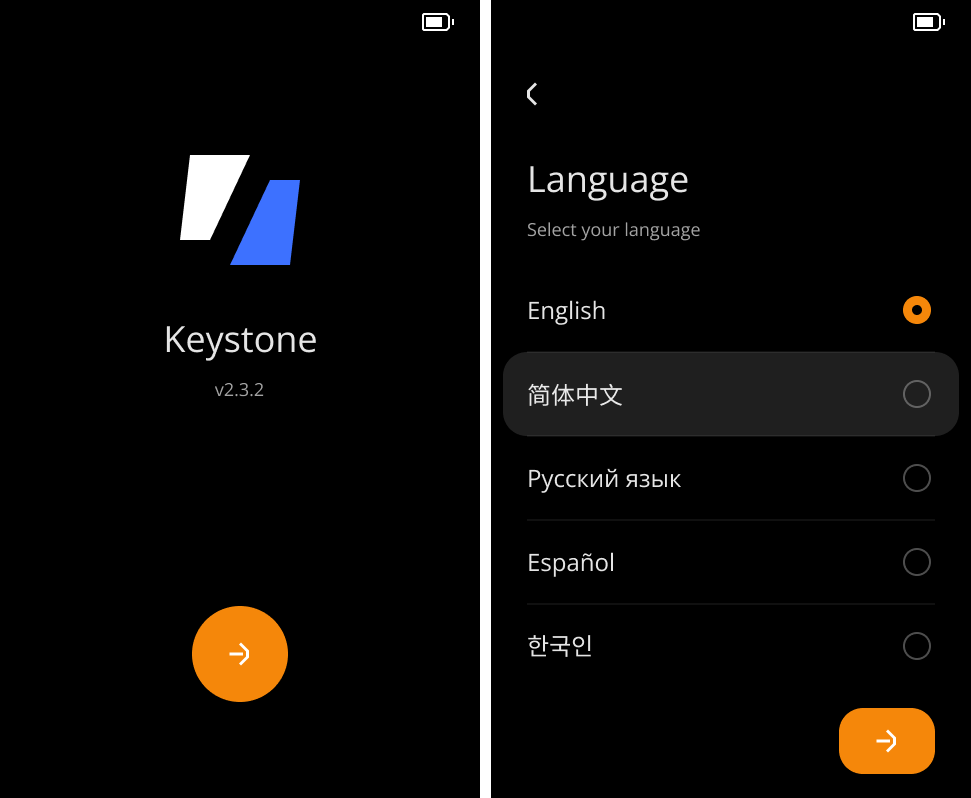
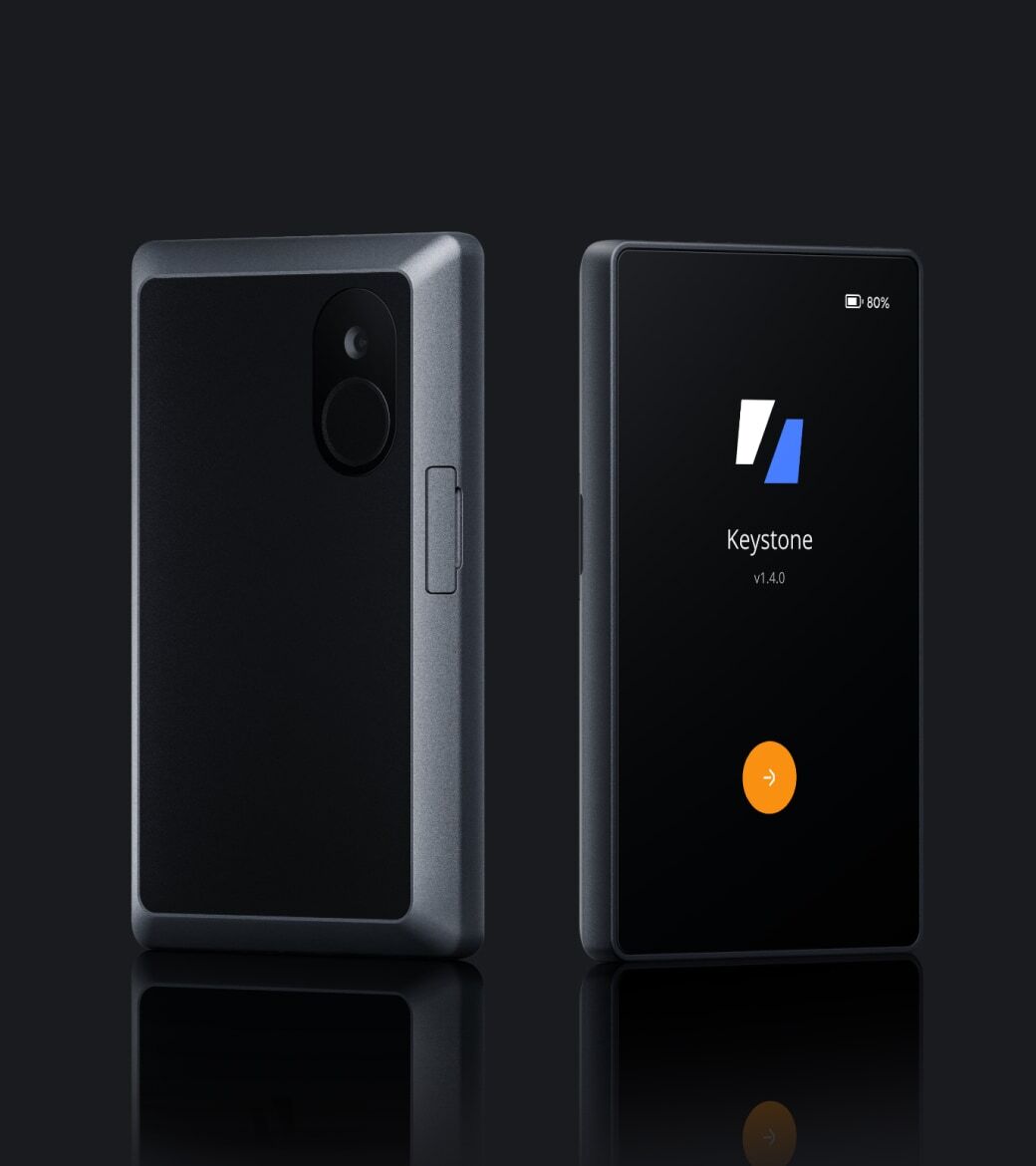
Press the Keystone power button to turn on the device. After startup, the current firmware version will be displayed. Once confirmed, the device will proceed to the language selection screen.
Select your preferred language to continue. Keystone currently supports English, Chinese, Russian, Spanish, and Korean.
2. Device Verification (Skippable)
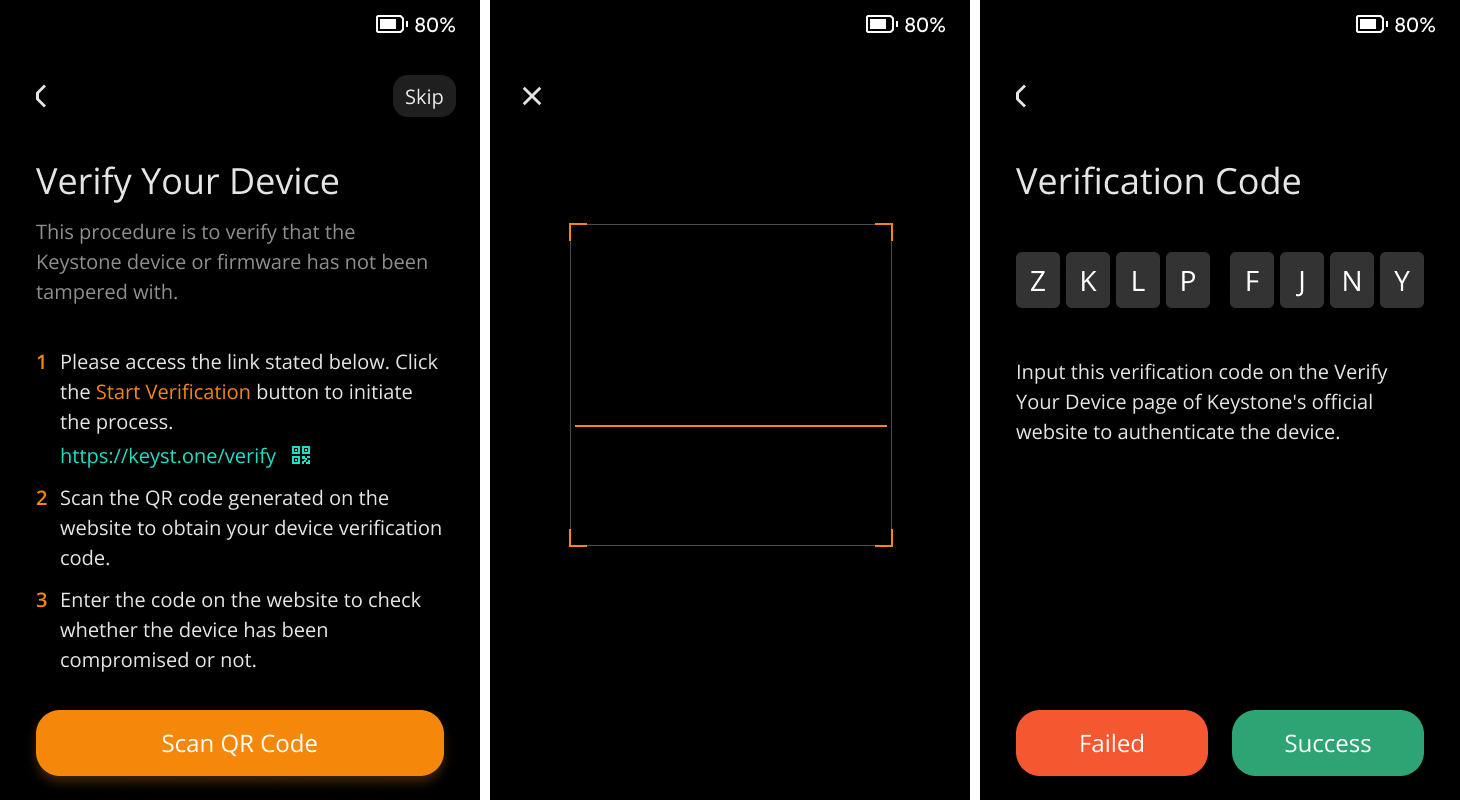
Why Device Verification: Device Verification is crucial to detect potential contamination during transportation, prevent supply chain attacks, and ensure the safety of installed firmware.
Device Verification via QR Code
- Visit the Device Verification page on the Keystone website.
- Click on "Scan QR Code" on the official website.
- Use your Keystone camera to scan the QR code shown on the website.
- A verification code will appear on your Keystone screen.
- Enter this code on the website to complete the verification process.
3. Firmware Update (Skippable)
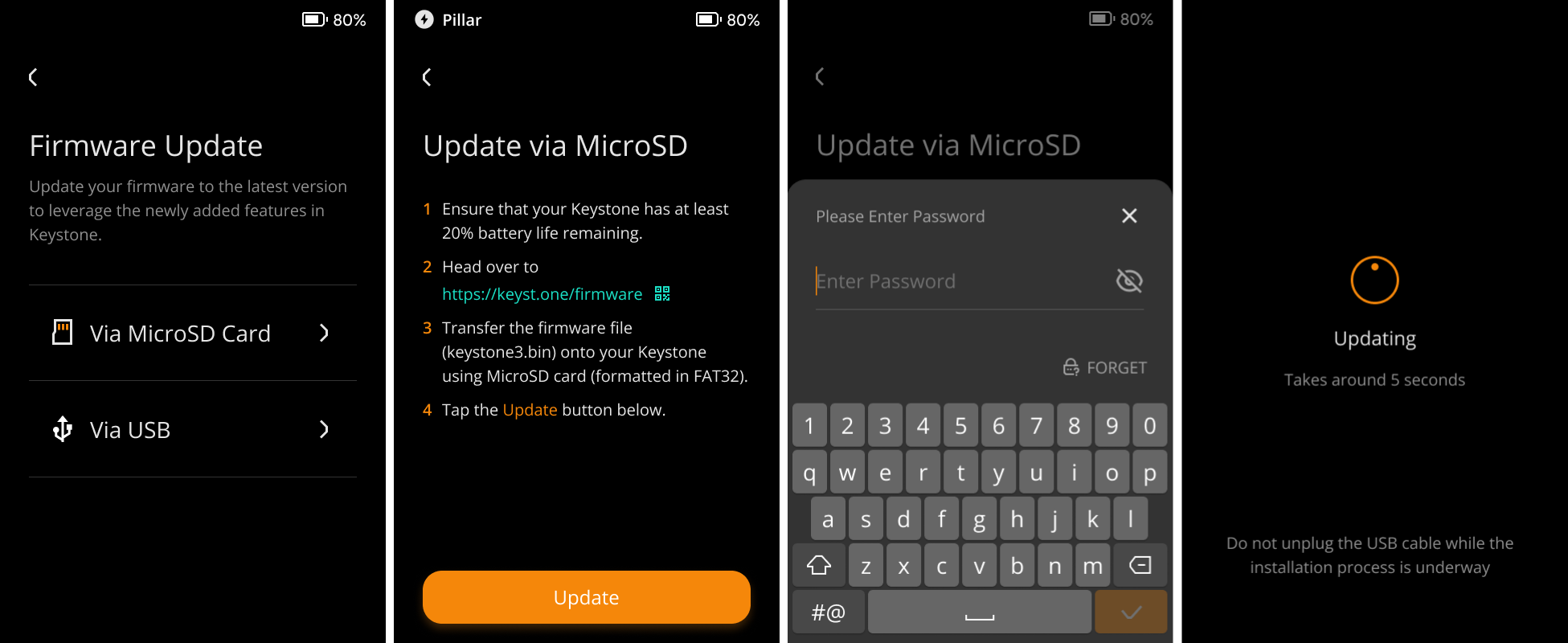
Why Update: Firmware updates typically include support for new blockchains, bug fixes, or new features. If your current version suits your needs, feel free to skip this step.
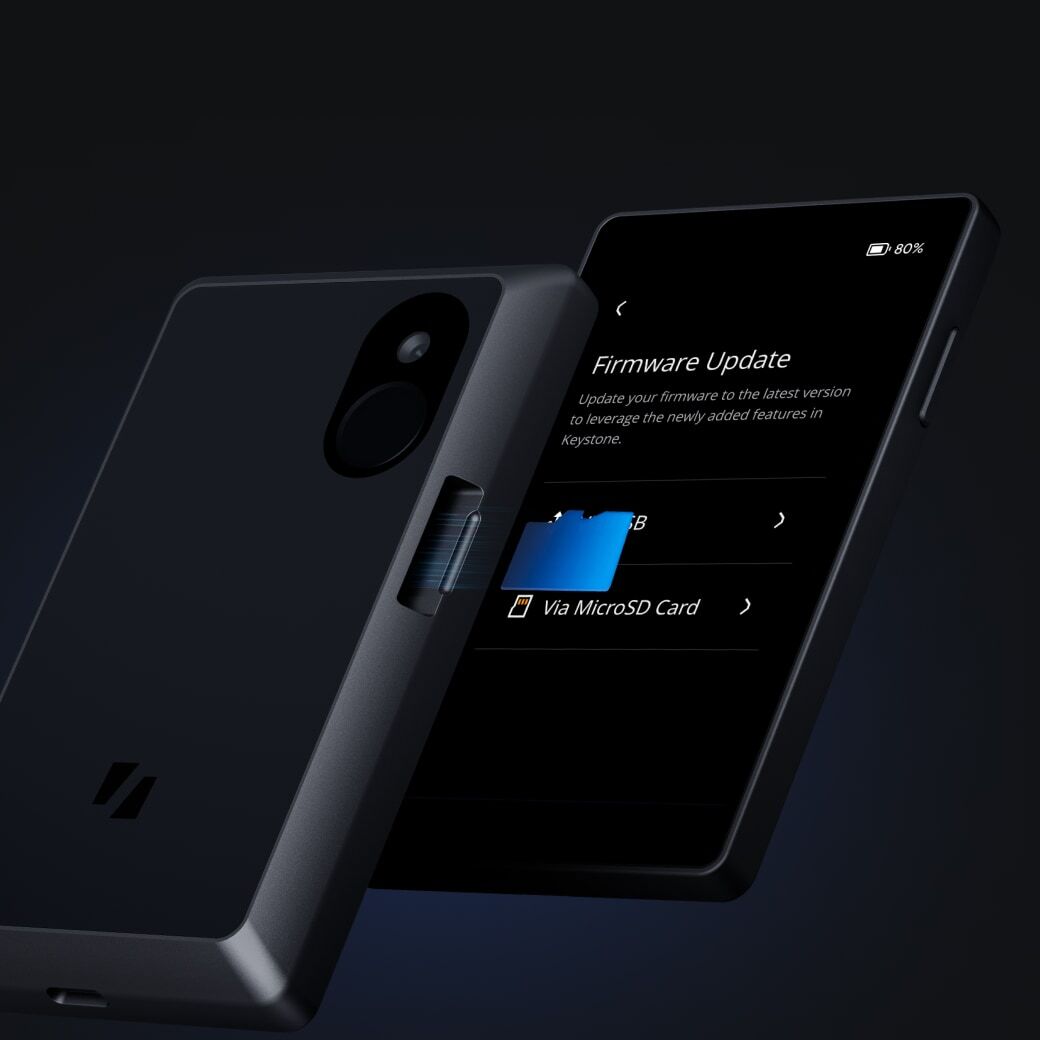
Update via MicroSD card
- Check Battery: Make sure your Keystone wallet has at least 20% battery charge.
- Format SD Card: Insert the SD card into your computer and format it as FAT32.
- Get Firmware: Download the latest firmware version from the Keystone Firmware Update and save the "keystone3.bin" file to the root of your MicroSD card.
- Insert SD Card: Place the SD card with the firmware into your Keystone wallet.
- Start Update: Access the "Upgrade" option on your Keystone wallet, then follow the on-screen instructions to initiate the update process.
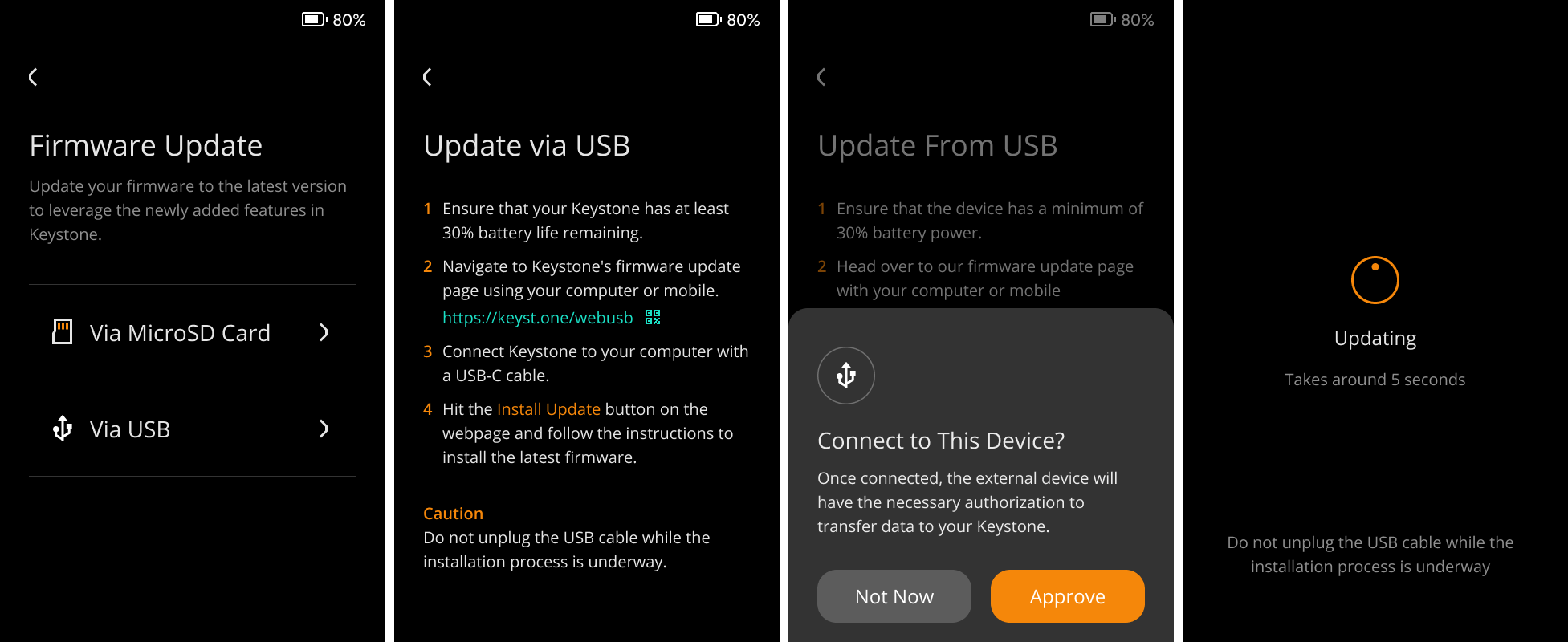
Update via USB Cable
- If your firmware version is below 1.0.4, you will need to perform the initial update using a MicroSD card before you can proceed with USB updates.
- Check Battery: Ensure your Keystone wallet has at least 20% battery charge.
- Connect: Tap on [via USB] and use the USB cable to connect your Keystone wallet to your computer. Tap [Approve] to grant your Keystone wallet USB access, as it might otherwise only allow charging.
- Update: Open your computer's web browser and go to the Firmware update page.
- Install: On the update page, click the "Install Update" button and follow the provided instructions to install the latest firmware.
4. Create or Import Wallet - Seed Phrase
Secure Password:
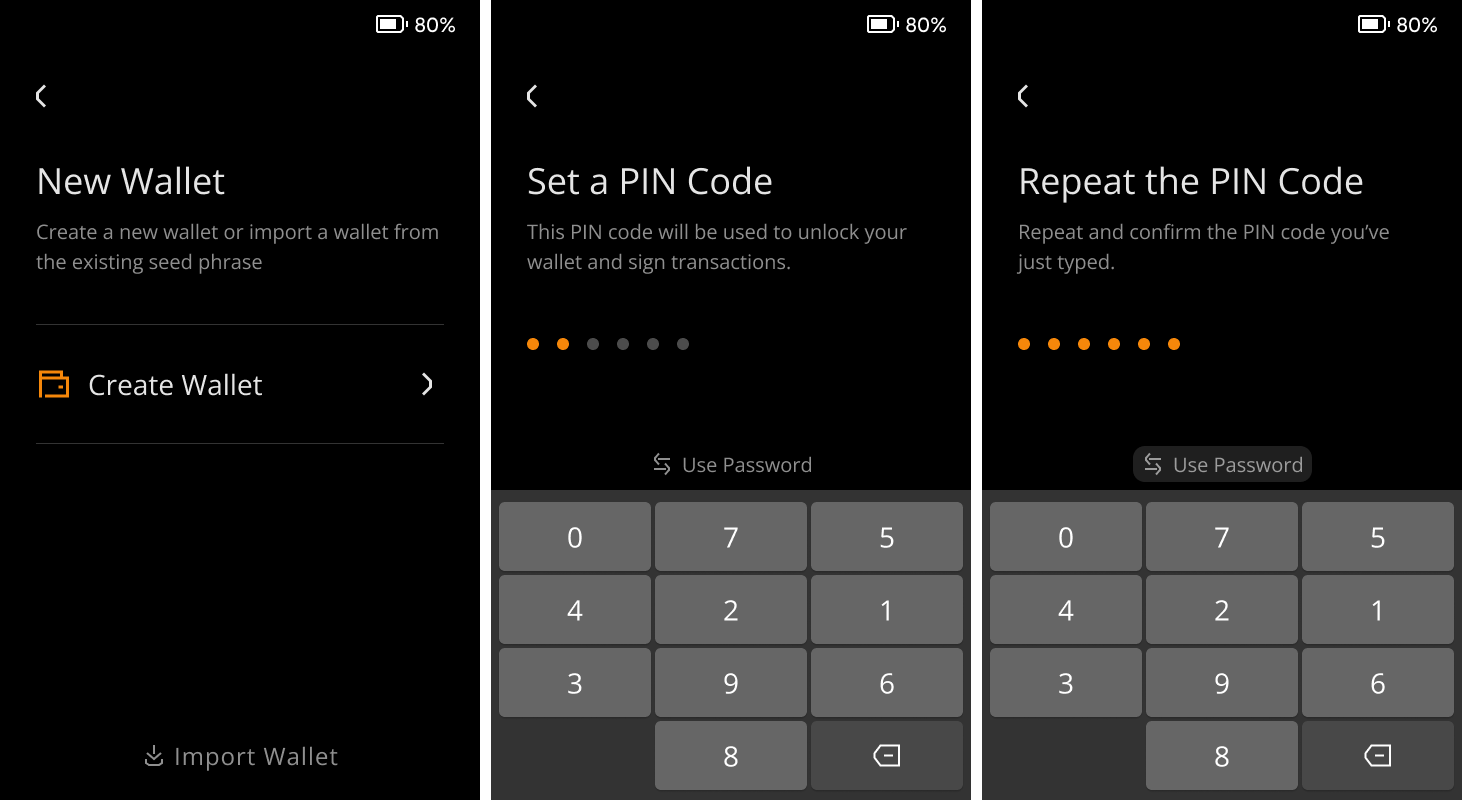
Name Your Wallet (Optional):
💡 Guard Your Seed Phrase Like Treasure: Your seed phrase is the key to your funds. Regard it as your most valuable possession, and handle it with utmost care to protect your assets.
- Write it Down: Put your seed phrase on the Secret Recovery Sheet or use the Keystone Tablet for extra protection against fire and rust.
- Keep it Private: Don't share it with anyone and avoid using it online.
- Stay Offline: Store your seed phrase offline to prevent unauthorized access. Avoid importing online-generated seed phrases into Keystone, as they are already exposed to online risks.
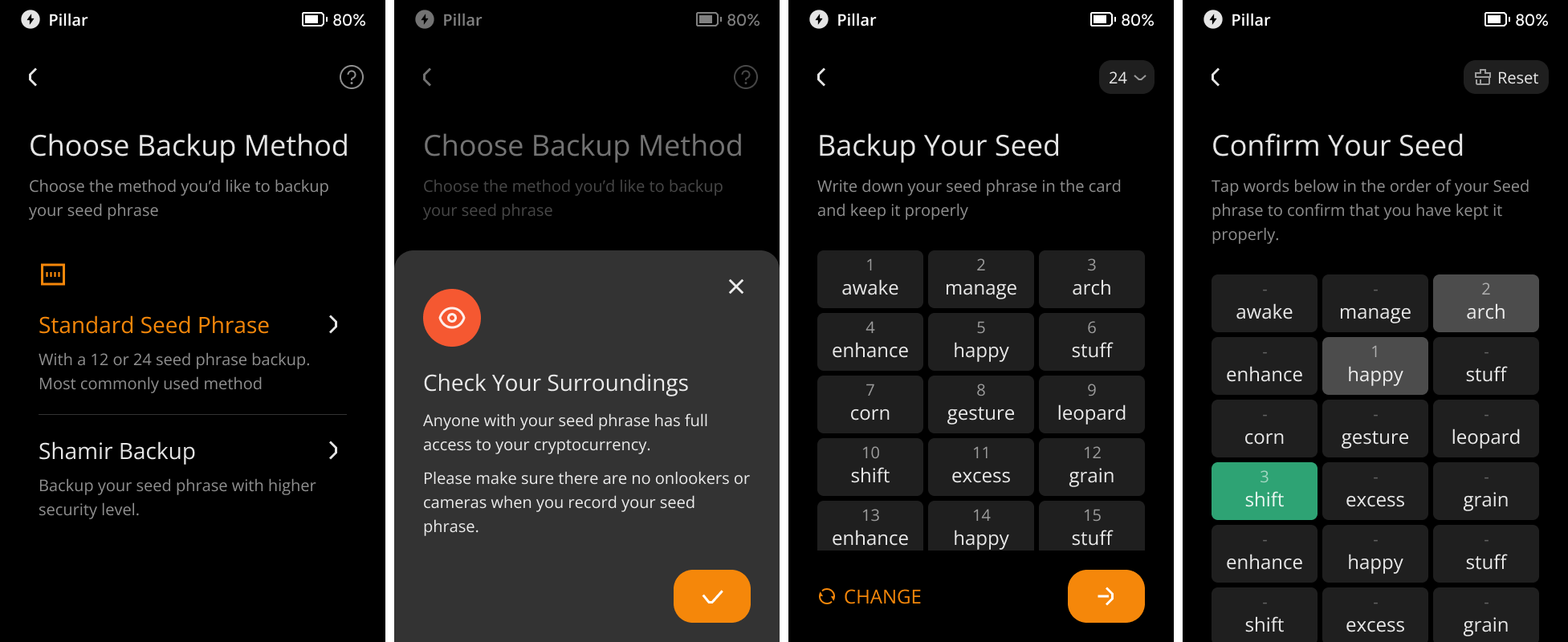
New User? Create a Wallet
- Select "Create New Wallet" if you are setting up a wallet for the first time.
- Your device will generate a 24-word seed phrase.
- Write down this seed phrase and store it securely.
- Confirm the seed phrase by verifying the words in the correct order as displayed on the screen.
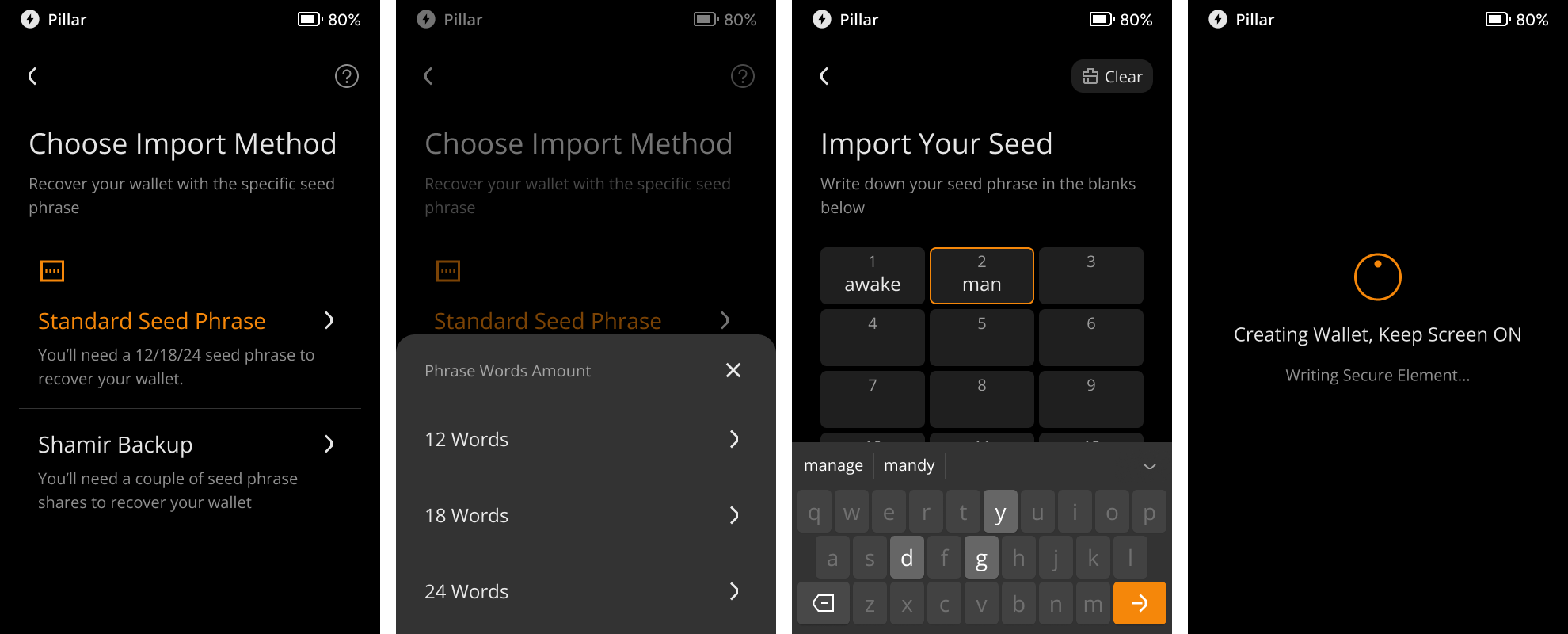
Already Have a Keystone Seed Phrase? Import Wallet**
- To mitigate online risks, don't import online-generated seed phrases into Keystone. Instead, generate a fresh seed phrase on Keystone.
- If you have a compatible wallet's seed phrase, select "Import Wallet."
- Enter your existing seed phrase using the on-screen keyboard.
- Confirm the seed phrase to import your existing wallet.
💡 Note: It’s always recommended to use offline generated seed phrase for optimal security protection. If you import a seed phrase generated online (e.g. through a mobile app, etc.), it will not be protected offline, even if it is imported into the hardware wallet.
5. Choose the Software Wallet You Need (Multiple Choices)
Choose your software wallet
Optimize your digital asset management with the right software wallet. Here are some recommendations:
- OKX Wallet (Extension & Mobile): Get this app to manage BTC and EVM tokens. We're expanding support for additional chains, aiming for an all-in-one solution.
- BlueWallet (Mobile): Ideal for BTC with features like Native Segwit, Nested Segwit, Legacy, coin control, Tor, and more.
- MetaMask (Extension & Mobile): Reliable wallet for EVM tokens like ETH, AVAX, and BNB.
- Rabby or BlockWallet (Extension): Recommended for EVM tokens like ETH, AVAX, and BNB.
- Safe (Extension & Mobile): Enables multi-sig EVM chain wallet use/creation.
Explore Keystone's “Supported Assets and Wallets” page for compatible options.
*Keystone 3 Pro supports BTC and EVM chains, with more coming soon.
Connect/bind Keystone with the Software Wallet (Take OKX Wallet for example)
- Download the App: download OKX Wallet from the App Store or official websites.
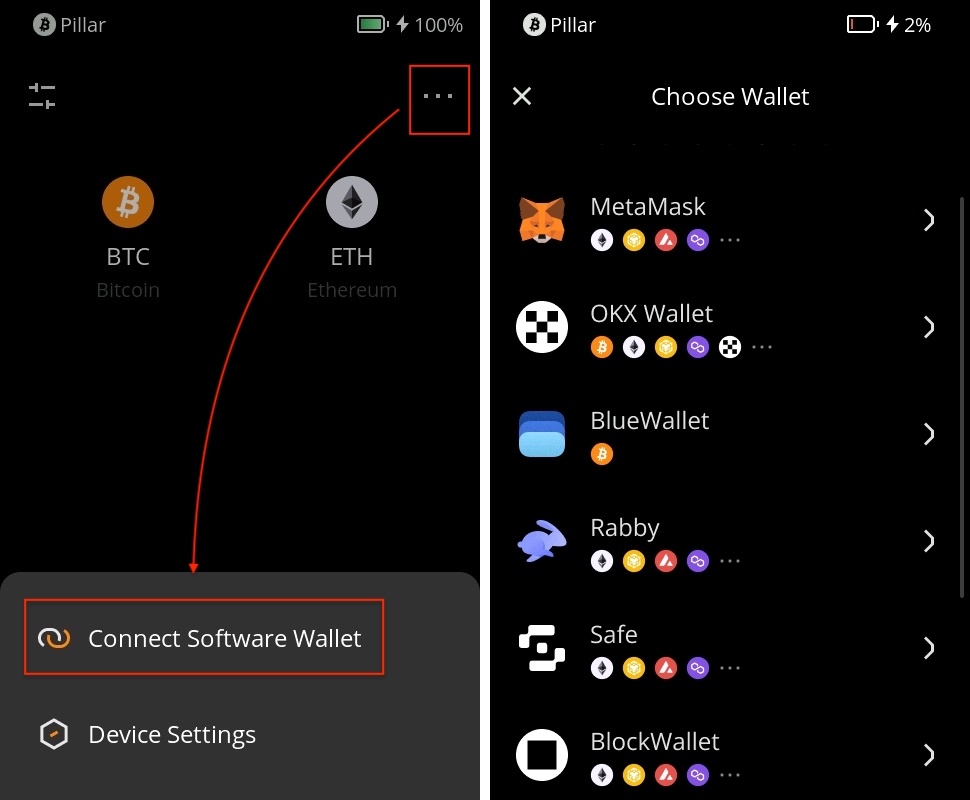
- On the Keystone device: Tap […] on the main page > Tap [Connect Software Wallet] and choose [OKX Wallet]. The QR code for connection to OKX Wallet will appear.
- On OKX Wallet Mobile:
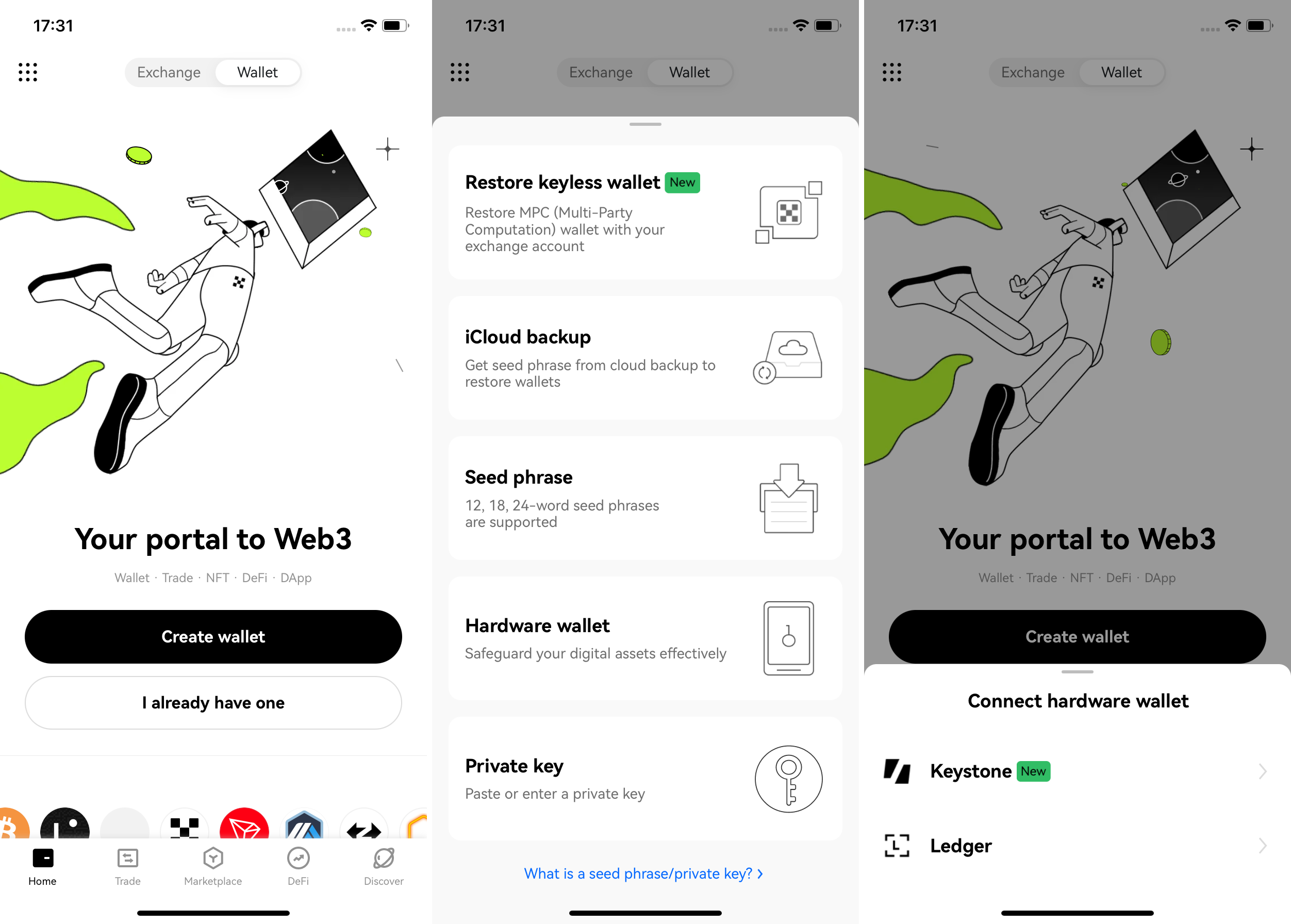
- Open the OKX Wallet and select "I already have one"
- Opt for "Hardware Wallet" and then select "Keystone."
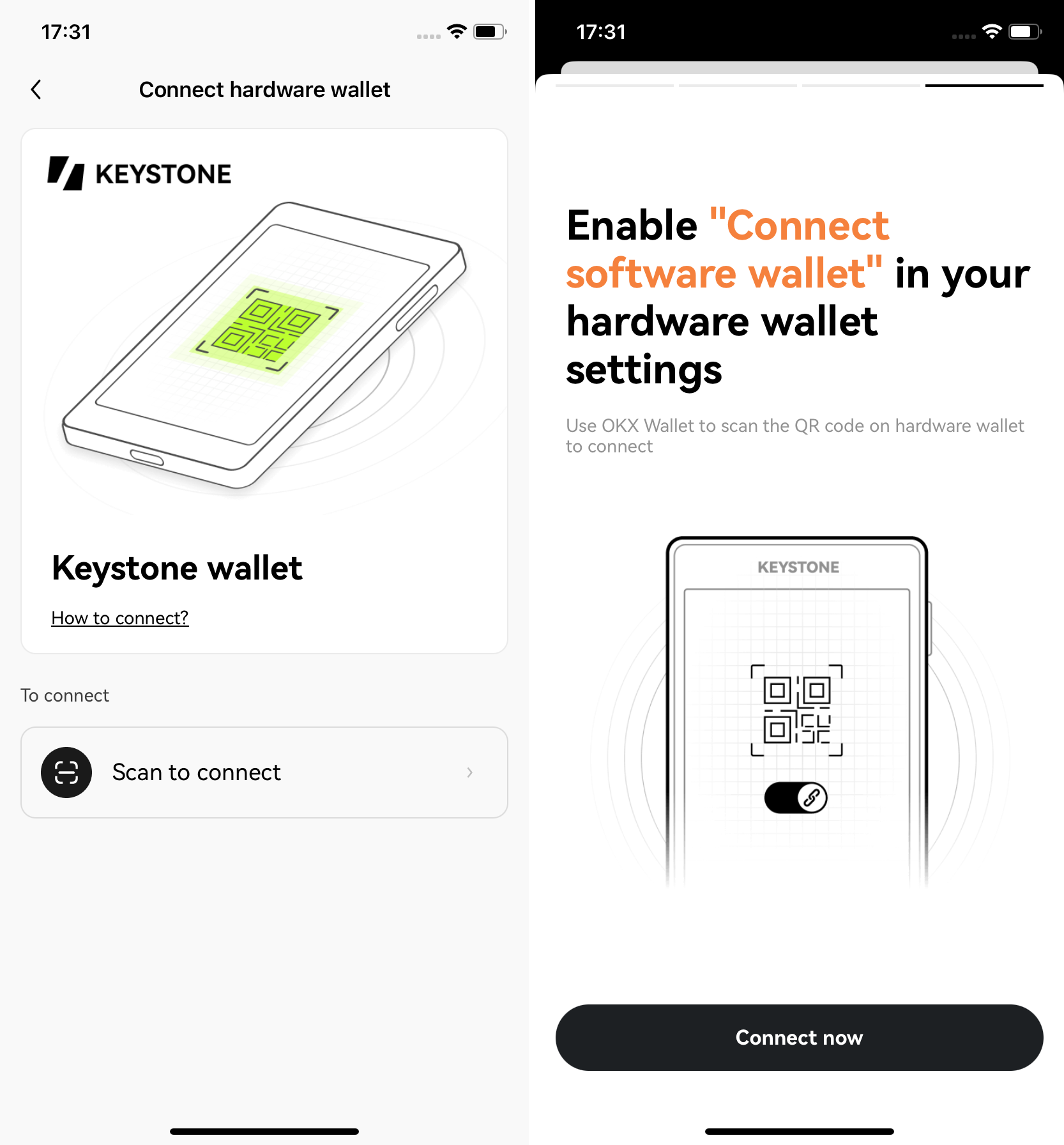
- Tap [Scan to connect] and carefully follow the provided instructions. Press [Connect now].
- Grant permission for the "OKX" app to access your camera, and use it to scan the QR code displayed on your Keystone hardware wallet. Select an account to unlock.
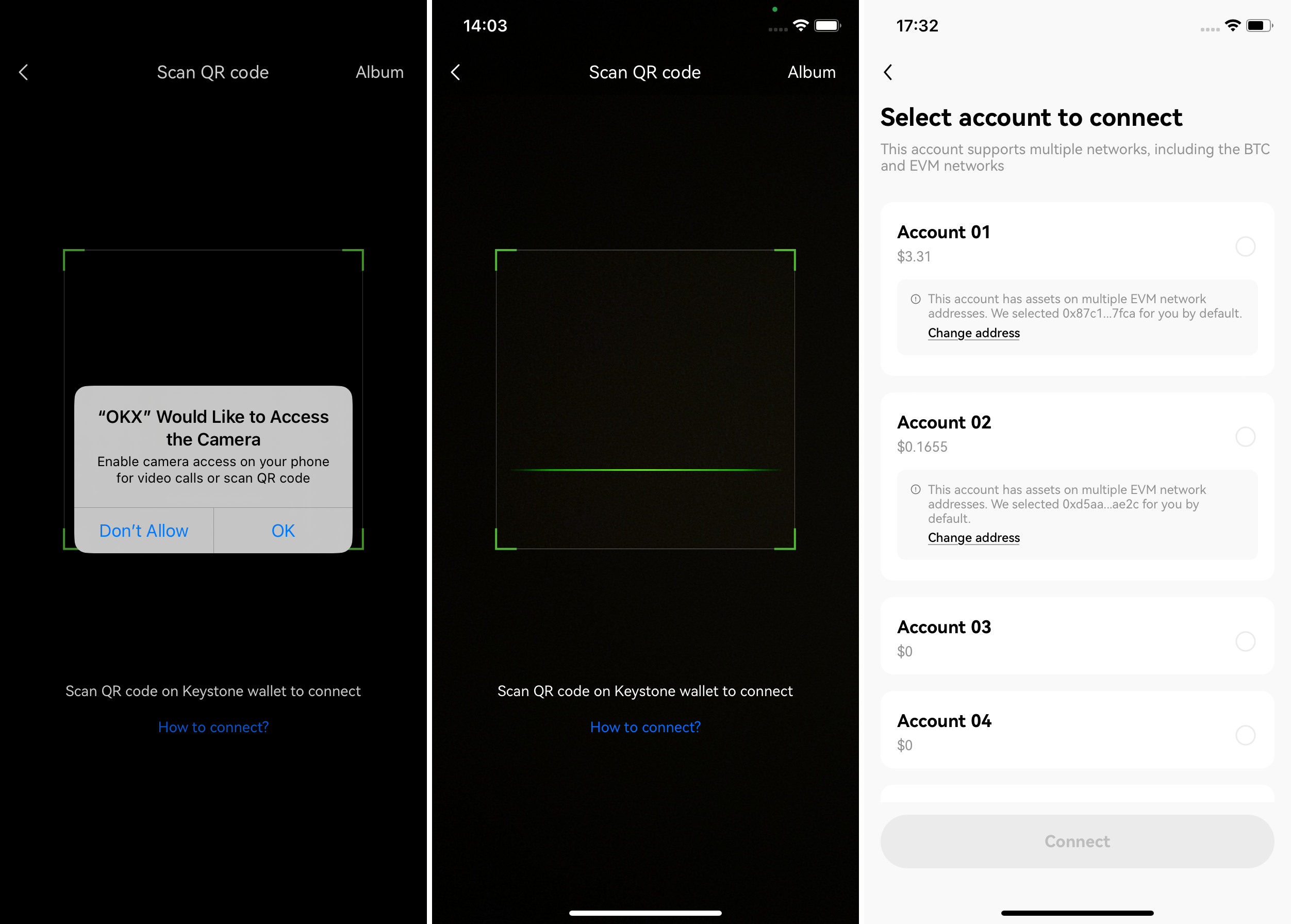
- Once you've successfully bound your Keystone wallet with OKX Wallet, you can securely explore its various features.
Right now, you can use the OKX wallet to access BTC and ETH once you've connected with Keystone. We're also working on adding more coins, so stay tuned for updates!
Congratulations! Your device is now set up and ready to use. Remember to keep your seed phrase safe and never share it with anyone to ensure the security of your funds.
By continuing to browse this site, you are agreeing to our use of cookies. We use cookies for functionality, analytics and advertising purposes as described in our Cookie Privacy.
CART
*